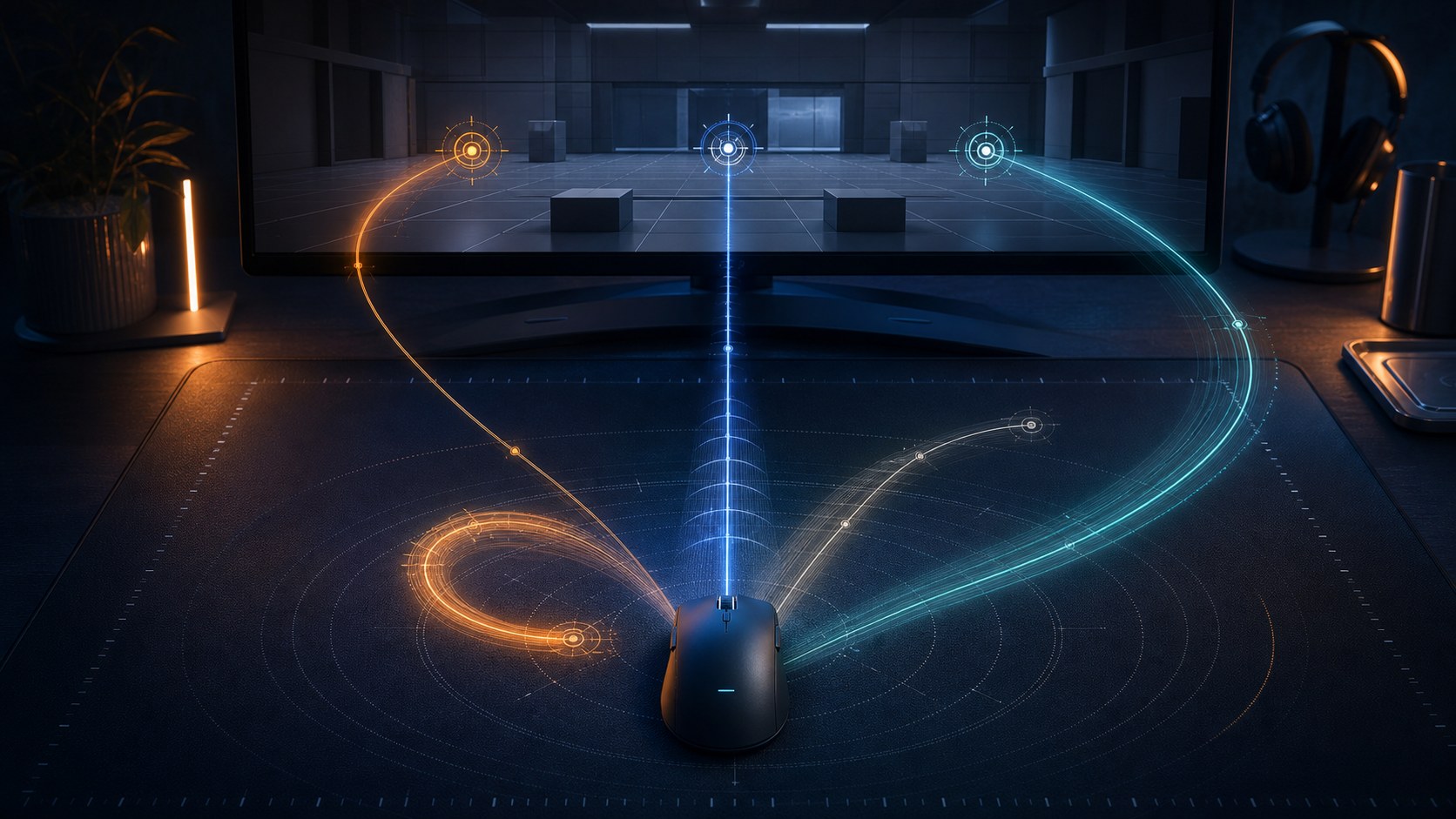
CS2 sensitivity is not a secret number hidden inside a professional player’s config. It is a relationship between your mouse DPI, the in-game multiplier, your available pad space, how you move your arm, and the size of the corrections Counter-Strike demands. A good sensitivity lets you turn far enough without fighting the edge of your desk, then stop precisely on a head without repeatedly correcting the correction.
This guide gives you a repeatable way to find that number. We will calculate eDPI, compare wrist aiming and arm aiming, explain why most players are actually hybrids, and build a seven-day test that separates a genuine sensitivity problem from weak crosshair placement, movement, or inconsistent technique.
Best neutral starting point: use 800 DPI and 1.0 in-game sensitivity for 800 eDPI, set your mouse to 1,000 Hz, give yourself at least 35–45 cm of usable horizontal pad space, and keep the value unchanged for seven days. If you consistently overflick, reduce it by 5%. If you consistently underflick or hit the pad edge, increase it by 5%.
What CS2 Sensitivity Actually Controls
Your mouse produces movement counts. DPI controls how many counts are reported for a physical distance, while the CS2 sensitivity value multiplies those counts into camera rotation. Two players can use different DPI values and still have the same effective turn speed.
That is why “I use 800 DPI” is incomplete. You need both numbers:
eDPI = mouse DPI × CS2 in-game sensitivity
| DPI | In-game sensitivity | eDPI | Effective speed |
|---|---|---|---|
| 400 | 2.00 | 800 | Same baseline |
| 800 | 1.00 | 800 | Same baseline |
| 1600 | 0.50 | 800 | Same baseline |
| 800 | 1.25 | 1,000 | 25% faster |
eDPI is the easiest way to compare settings within Counter-Strike. It is not a universal measurement across every game because games use different rotation scales. For a physical comparison across games or setups, players often use centimeters per 360-degree turn, usually written cm/360.
A lower eDPI creates a longer cm/360: more mouse travel for the same turn, with a larger physical margin for micro-adjustments. A higher eDPI creates a shorter cm/360: less travel, faster turns, but a smaller physical margin for error.
What Is a Good eDPI for CS2?
There is no perfect value, but there is a practical testing range. ProSettings’ 2026 analysis of 928 professional profiles reports a median near 830 eDPI, with 400, 800, and 1600 as the most common base DPI steps. Professional data is useful as a sanity check, not as a commandment.
| eDPI range | General feel | Likely strengths | Likely costs |
|---|---|---|---|
| Below 600 | Very low | Large precision window; calm long-range corrections | Heavy arm travel; frequent lifts; difficult emergency turns |
| 600–750 | Low | Controlled rifle aim and micro-adjustments | Needs pad space and efficient arm technique |
| 750–950 | Balanced | Strong compromise for rifles, AWP, and general play | No extreme specialization |
| 950–1200 | High | Fast angle clearing and target transfers | More demanding fine control |
| Above 1200 | Very high | Minimal physical movement; quick turns | Small error margin; shakiness becomes visible |
If you are completely new, 800 eDPI is a clean starting hypothesis. If you already play comfortably at 700 or 1,000, do not change merely to reach the median. Your goal is repeatable performance, not statistical conformity.
Research supports treating sensitivity as a speed–precision trade-off rather than searching for a magical point. A controlled study on first-person targeting found a statistically meaningful range of effective sensitivity values and showed that task difficulty changes the balance between speed and precision. That is consistent with CS2: a close-range multi-target transfer and a distant one-pixel correction do not reward exactly the same physical behavior.
Wrist Aiming: Fast Corrections in a Small Space
A wrist aimer keeps most of the forearm relatively stable and creates a large share of movement through the wrist, fingers, and small forearm rotations. This style is commonly associated with medium-to-high sensitivity, but the label is not binary. A wrist-dominant player may still move the arm for a large turn.
Advantages of wrist aiming
- Requires less mousepad space.
- Makes rapid direction changes physically compact.
- Can feel natural for players coming from desktop-heavy or high-sensitivity games.
- Allows quick close-range corrections without moving the entire arm.
Weaknesses of wrist aiming
- Tiny tension changes can move the crosshair noticeably.
- Long sessions may encourage excessive grip pressure.
- Very high sensitivity makes distant head-level corrections less forgiving.
- A planted wrist can limit smooth tracking at the edges of its range.
Wrist aiming is not inherently inaccurate or unhealthy. The problem is locking the joint, gripping too hard, or forcing every movement through a small range. Keep the hand relaxed, let the forearm assist with large movements, and stop if you feel pain, numbness, or persistent discomfort. This guide is about performance, not medical treatment.
A useful wrist-dominant starting point
Try 800 DPI × 1.15 for 920 eDPI. It is fast enough to reduce pad travel without entering an extreme range. Use the arm for large angle changes and the wrist/fingers for the final correction.
Arm Aiming: A Larger Physical Precision Window
An arm aimer moves more from the shoulder and elbow, sliding the forearm across the desk or pad. The wrist remains active, especially during small corrections, but broad rotations come from larger joints. This usually pairs with low-to-medium sensitivity and a large mousepad.
Advantages of arm aiming
- More physical distance represents the enemy’s head, creating a generous correction window.
- Can make long-range rifle adjustments feel stable.
- Encourages relaxed, smooth sweeping movements.
- Works well with deliberate crosshair placement and first-bullet accuracy.
Weaknesses of arm aiming
- Needs enough desk and pad space.
- Poor lifting and recentering technique can interrupt fights.
- Extremely low sensitivity can make clearing several close angles physically inefficient.
- Desk height, sleeve friction, and elbow position matter more.
A useful arm-dominant starting point
Try 800 DPI × 0.9 for 720 eDPI. Make sure you have enough horizontal room before judging it. If you constantly hit the pad edge, solve the desk-space problem or raise sensitivity slightly; do not train around an unusable physical layout.
Hybrid Aiming Is the Real Default
Most strong CS2 players are not purely “wrist” or purely “arm.” They use the arm to place the crosshair into the correct region, the wrist to refine the line, and the fingers for tiny adjustments or recoil control. The mix changes with distance and urgency.
A common hybrid sequence looks like this:
- Shoulder and elbow: move across a large angle or recenter the mouse.
- Wrist: stop near the target and correct horizontally or vertically.
- Fingers: make the smallest final placement or manage a short spray.
This is why choosing sensitivity solely from an identity—“I am a wrist aimer”—can be misleading. First choose a value that handles your real in-game tasks. Your movement strategy will naturally distribute work across joints.
For a hybrid baseline, use 800 DPI × 1.0 for 800 eDPI. It sits close to the reported professional median and usually allows a mix of arm and wrist control.
How to Measure Your Available Mouse Space
Clear the desk and measure the usable horizontal distance between the places where the mouse can actually move—not the advertised pad width. Keyboard angle, monitor stand, microphone base, and desk edge often reduce it.
| Usable width | Practical implication | Starting direction |
|---|---|---|
| Under 25 cm | Low sensitivity will require frequent lifts | Try 900–1100 eDPI or improve desk layout |
| 25–35 cm | Enough for balanced play with deliberate recentering | Try 800–950 eDPI |
| 35–45 cm | Comfortable competitive range | Try 700–900 eDPI |
| Over 45 cm | Supports low sensitivity and broad arm motion | Try 650–850 eDPI |
These are starting directions, not laws. The important test is whether you can clear the largest realistic angle from your neutral position and still retain enough space for the next correction.
The Seven-Day CS2 Sensitivity Test
Day 1: choose one baseline
Set 800 DPI, 1.0 sensitivity, and 1,000 Hz. Use the middle/default Windows pointer-speed position. Many competitive guides recommend disabling “Enhance pointer precision” so desktop acceleration does not surprise you outside applications that use raw input. Microsoft documents where the setting lives and what it changes; treat it as an operating-system pointer option, not a substitute for testing inside CS2.
Write down the date, DPI, sensitivity, eDPI, resolution, and mousepad width. If you change resolution later, record that separately because stretched images can change perceived motion even when angular sensitivity is unchanged.
Days 2–3: diagnose direction, not score
Use three short drills:
- Static targets: move between separated head-sized points. Count obvious overflicks and underflicks.
- Tracking: follow a moving target smoothly without repeatedly jumping ahead and correcting back.
- Deathmatch: observe real pre-aim, counter-strafing, recoil, and close-angle clearing.
Do not use a single high score as the verdict. Look for a repeated directional error. Random misses in both directions usually indicate timing, vision, tension, or technique rather than a simple sensitivity mismatch.
Day 4: make one 5% change only if evidence supports it
If overflicks clearly dominate, multiply sensitivity by 0.95. From 1.0, move to 0.95. If underflicks dominate and you are physically running out of room, multiply by 1.05. Avoid dramatic jumps because they make it difficult to identify the cause of improvement or decline.
Days 5–7: lock and validate
Play several maps and roles. A setting must work for long-range rifle taps, AWP corrections, utility turns, close fights, and fast recentering. At the end of the week, keep the value if:
- you can stop on targets without repeated correction;
- you rarely collide with the pad edge during realistic turns;
- your grip remains relaxed through a full session;
- misses feel explainable rather than chaotic;
- the setting still works on a bad day.
Overflicking, Underflicking, and Other Diagnostic Signals
| Symptom | Possible cause | First action |
|---|---|---|
| Crosshair repeatedly passes the target | Sensitivity too high or excessive hand tension | Relax first; then test −5% |
| Crosshair repeatedly stops short | Sensitivity too low or hesitant movement | Commit to the movement; then test +5% |
| Long-range aim shakes | Grip tension, unstable wrist, or high sensitivity | Reduce grip pressure before changing values |
| Close turns hit the pad edge | Low sensitivity or poor neutral position | Recenter earlier; improve space; then test +5% |
| First movement is good, second correction misses | Visual confirmation or stopping problem | Slow the drill; do not immediately change sensitivity |
| Aim feels different every match | Frame-time, posture, pad moisture, or constant setting changes | Stabilize environment and performance |
If the mouse feels inconsistent because the game stutters, sensitivity tuning will not solve it. First stabilize frame time with our CS2 best settings and FPS guide.
DPI: 400, 800, or 1600?
All three can work. ProSettings’ aggregated professional data shows 400 DPI is still the most common, followed by 800 and 1600. Historical habit explains much of that distribution. Modern sensors generally perform well at multiple native steps.
Choose a clean DPI step your mouse supports, then adjust the in-game multiplier to reach the desired eDPI. For most players:
- 400 DPI: familiar traditional Counter-Strike baseline; requires a larger in-game number.
- 800 DPI: convenient desktop speed and simple eDPI math; an excellent default.
- 1600 DPI: permits a smaller game multiplier and responsive desktop movement; ensure menus remain comfortable.
Do not assume a huge advertised DPI number is automatically more precise. Stability, sensor behavior, pad tracking, and a usable effective sensitivity matter more than marketing maximums.
Polling Rate and Sensitivity Consistency
Polling rate is how often the mouse reports its state to the computer. A stable 1,000 Hz is the safest competitive baseline. Higher rates such as 2,000 or 4,000 Hz can reduce the report interval, but the practical gain is small and the CPU cost may worsen frame-time consistency on some systems.
Test higher polling only after the sensitivity feels stable. Use the same map and performance conditions, and watch for stutter rather than assuming the larger number is better.
Does 4:3 Stretched Change Mouse Sensitivity?
Changing aspect ratio does not automatically change the angular rotation produced by the same mouse input, but it changes how the world is displayed. With 4:3 stretched, models and horizontal motion appear wider and faster. The same physical turn can therefore feel different.
Keep your eDPI unchanged when first testing a new resolution. Give your visual system several sessions to adapt before making another sensitivity change. If you want detailed professional examples, see our CS2 pro settings comparison.
Zoom Sensitivity for the AWP
The zoom sensitivity multiplier affects scoped weapons. A value of 1.0 is a practical baseline and is widely used in reported professional profiles. Do not tune it at the same time as hip-fire sensitivity. First establish a stable unscoped value, then test scoped tracking and small AWP corrections separately.
If scoped movement consistently feels too fast while unscoped aim is correct, lower the zoom multiplier slightly. If it feels trapped and under-responsive, raise it slightly. Keep changes small and record them.
Common Sensitivity Myths
“Lower sensitivity always gives better aim”
Lower sensitivity enlarges the physical precision window, but going too low creates turn-speed, fatigue, lifting, and pad-space costs. The best value balances the tasks you actually perform.
“Wrist aim is bad; arm aim is correct”
Both can produce elite performance. Most players combine them. Technique, comfort, control, and task fit matter more than the label.
“Never change sensitivity because muscle memory will reset”
Constant random changes make diagnosis difficult, but a controlled adjustment does not erase your ability to aim. The first-person targeting study cited below found a range rather than one universal optimum, reinforcing the idea that humans adapt within useful bounds.
“Copying a professional gives professional aim”
A professional number can remove an obviously extreme starting point. It cannot copy hand size, grip, pad friction, posture, perception, or years of practice. Copy the testing discipline instead.
“Aim trainer scores are all that matter”
CS2 combines aim with stopping, recoil, pre-aim, angle knowledge, target recognition, and pressure. Validate settings in deathmatch and real rounds. Our CS2 beginner guide explains why shooting while moving can make a mechanically correct mouse movement miss.
Sensitivity also cannot remove weapon recoil or turn a poor buy into a favorable duel. Use the CS2 weapons guide to learn how each gun should be controlled and the CS2 economy guide to understand which practice weapons you will realistically carry in full buys, force buys, and eco rounds.
Three Ready-to-Test CS2 Sensitivity Profiles
| Profile | DPI | Sensitivity | eDPI | Movement style |
|---|---|---|---|---|
| Controlled arm-dominant | 800 | 0.90 | 720 | Arm for broad movement; wrist for finish |
| Balanced hybrid | 800 | 1.00 | 800 | Natural arm–wrist combination |
| Fast wrist-dominant | 800 | 1.15 | 920 | Compact turns; arm assists at extremes |
Choose the profile closest to your available space and natural movement. Do not test all three in one evening. Use one for several days, collect directional evidence, and make a single controlled change.
FAQ
What is the best CS2 sensitivity for beginners?
800 DPI and 1.0 in-game sensitivity—800 eDPI—is a strong neutral starting point. It is neither extremely slow nor extremely fast and makes later percentage changes easy.
How do I calculate CS2 eDPI?
Multiply mouse DPI by in-game sensitivity. For example, 400 × 2.0 and 800 × 1.0 both equal 800 eDPI.
Should I aim with my wrist or arm?
Use both. Let the arm handle large placement and recentering, the wrist handle medium corrections, and the fingers assist with the smallest adjustments. The exact mix depends on sensitivity and distance.
How often should I change sensitivity?
Only when repeated evidence identifies a problem. Lock a baseline for about a week, then adjust by roughly 5%. Avoid changing after one bad match.
Why does my aim feel different after changing resolution?
Aspect ratio and stretching change perceived target width and screen motion. Keep eDPI fixed initially and allow time for visual adaptation.
Is 1000 eDPI too high?
No. It is above the reported professional median but still inside a practical competitive range. If you can make stable long-range corrections without tension or repeated overflicking, it may suit you.
Final Recommendation
Start at 800 eDPI, not because it is magic, but because it is a useful center. Create enough desk space, use a stable 1,000 Hz polling rate, and spend a week looking for patterns. Wrist-dominant aim can justify more speed; arm-dominant aim can use a lower value; most players should build a hybrid.
The winning sensitivity is the one that makes correct decisions repeatable. It lets you move quickly enough for the fight, stop accurately enough for the head, and stay relaxed enough to do it again in round twenty-four.
Continue through the complete Spack Night Counter-Strike 2 learning path for settings, weapons, economy, and beginner fundamentals.
Sources and Methodology
- ProSettings: CS2 Best Settings & Options Guide — aggregated DPI, eDPI, and resolution data based on 928 professional profiles; last modified May 3, 2026.
- Boudaoud, Spjut & Kim: Mouse Sensitivity Effects in First-Person Targeting Tasks — primary research on sensitivity and the speed–precision trade-off.
- IEEE Conference on Games paper PDF — full study text.
- The effect of computer mouse mass on target acquisition performance among action video gamers — controlled study involving 72 players and four mouse masses.
- Microsoft Support: Change mouse settings — official location and description of Windows pointer options.
- Steam Support: CS2 video settings recommendations — official display, refresh-rate, and input-latency context.