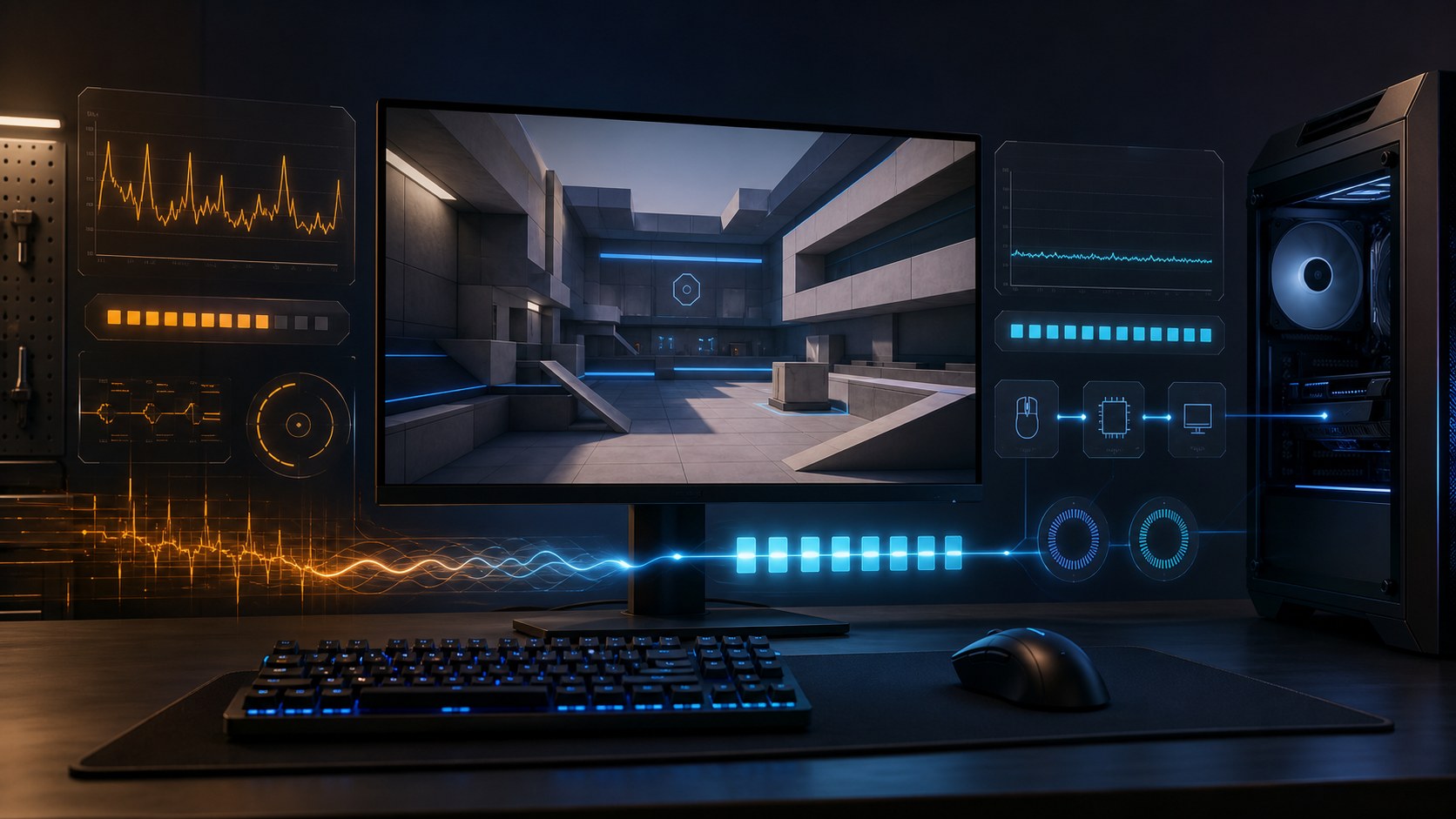
Settings last reviewed: July 26, 2026. Counter-Strike 2, graphics drivers, and Windows are updated frequently. Menu labels may move, and a driver that improves one system can regress another. Change one group of settings at a time, record a baseline, and keep a rollback path.
The best CS2 settings are not simply “everything low.” A competitive setup must produce high frame rates, stable frame times, low system latency, clear enemies, readable shadows, and a predictable mouse feel. Turning every option down can make distant targets and smoke edges harder to read without fixing a CPU bottleneck. Copying a professional player’s resolution will not copy their vision, monitor, GPU, or preferences.
This CS2 best settings guide gives you three practical presets, explains every important video option, covers NVIDIA Control Panel and Windows optimization, and separates useful launch options from outdated myths. If you are still learning the game itself, pair this article with our CS2 beginner guide. If your frame rate is already stable but buying decisions are not, use the CS2 economy guide.
The safe starting point
Use Fullscreen, your monitor’s highest refresh rate, Boost Player Contrast on, V-Sync off, NVIDIA Reflex Enabled on supported GeForce hardware, Dynamic Shadows set to All, moderate anti-aliasing, and low-to-medium cosmetic settings. Then measure. If the GPU stays near full utilization, lower GPU-heavy settings. If GPU utilization is modest but FPS remains low, resolution reductions probably will not solve the CPU bottleneck.
Quick Answer: Best Competitive CS2 Settings
| Setting | Recommended baseline | Why |
|---|---|---|
| Display Mode | Fullscreen | Simple competitive baseline with predictable presentation |
| Refresh Rate | Highest supported rate | Avoid accidentally running a 144/240/360 Hz display at 60 Hz |
| Resolution | Native first; lower only after testing | Keeps targets and utility readable; lowering helps mainly when GPU-bound |
| Boost Player Contrast | Enabled | Improves character separation from backgrounds |
| Wait for Vertical Sync | Disabled for the basic competitive preset | Avoids the latency cost of conventional V-Sync; VRR users need a separate tested strategy |
| MSAA / anti-aliasing | 2x MSAA or CMAA2; 4x if GPU headroom exists | Reduces distracting shimmering without excessive GPU cost |
| Global Shadow Quality | Medium or High | Maintains useful shadow information and consistency |
| Dynamic Shadows | All | Enemy shadows can reveal movement outside direct view |
| Model / Texture Detail | Low or Medium | Balances clarity, VRAM use, and loading behavior |
| Texture Filtering | 4x or 8x anisotropic | Improves angled surface clarity at usually modest cost |
| Shader / Particle Detail | Low | Reduces cosmetic load; raise only when stable |
| Ambient Occlusion | Disabled for maximum FPS | Primarily visual depth rather than essential competitive information |
| HDR | Performance on weaker GPUs; Quality with headroom | Performance mode can save GPU time; judge visibility in live maps |
| FidelityFX Super Resolution | Disabled at native resolution; Quality only when GPU-bound | Upscaling can increase FPS but soften distant detail |
| NVIDIA Reflex Low Latency | Enabled | Reduces render-queue latency on supported GeForce GPUs |
Names and available values can vary slightly with hardware and game updates. Treat this table as a baseline, not a promise that every system reaches a particular frame rate.
First Principle: Optimize the Whole Latency Chain
When players say “lag,” they may mean four different problems:
- Low average FPS: the computer does not render enough frames per second.
- Poor frame-time consistency: FPS looks acceptable on average, but individual frames arrive unevenly and produce stutter.
- System latency: time between mouse input and the resulting pixel reaching the display.
- Network latency: time required to communicate with the server, affected by route, distance, congestion, and connection quality.
Video settings can improve the first three. They cannot turn a distant server into a nearby one. Changing DNS does not directly reduce the physical round trip after a match connection has been established. A wired connection, a nearby server region, stable routing, and avoiding saturated household uploads are the practical network steps.
NVIDIA’s official CS2 Reflex guide defines system latency as the accumulated delay across peripherals, PC processing, and display. It recommends PC latency as an accessible metric when optimizing settings and explains that Reflex is especially useful when GPU utilization is high because it coordinates CPU and GPU work instead of allowing a deep render queue.
How to Build a Reliable CS2 Baseline
Do not optimize by playing one random Deathmatch, changing six settings, and deciding the game “feels faster.” Player count, map location, smoke, water, effects, background software, temperature, and server conditions all change the result.
- Restart the PC and allow updates or indexing activity to finish.
- Close unnecessary software, especially browsers with video, recording tools you are not using, game launchers updating in the background, and hardware-monitoring suites with aggressive polling.
- Choose a repeatable test: the same practice map, route, duration, smoke and firefight sequence.
- Warm the system for several minutes so boost clocks and fan behavior reach realistic conditions.
- Record average FPS, 1% low FPS, GPU utilization, CPU behavior, temperature, and PC latency if available.
- Change one setting group, repeat the same route at least three times, and compare medians rather than the single best result.
NVIDIA’s current FrameView guide treats average FPS, 1% low FPS, and performance-per-watt as core metrics and can report PC latency in supported Reflex titles. Other overlays can work, but use one consistent method throughout the test.
How to identify the bottleneck
| Observation | Likely limit | Next test |
|---|---|---|
| GPU remains near maximum utilization | GPU-bound | Lower resolution, MSAA, shadows, particles, HDR quality, or enable quality upscaling |
| GPU utilization is moderate while FPS will not rise | Often CPU, memory, game-thread, or frame-cap limited | Check cap, temperatures, background tasks, memory configuration, and CPU performance |
| Average FPS is high but 1% low is poor | Stutter, streaming, background load, temperature, or driver issue | Watch frame-time graph; test clean startup and stable clocks |
| FPS drops after ten minutes | Possible thermal or power limit | Check CPU/GPU temperatures, laptop power, fans, and dust |
| Offline is smooth but online feels delayed | Network route, packet loss, jitter, or server condition | Compare server region, wired connection, and network telemetry |
Three Recommended CS2 Settings Presets
| Preset | Low-spec / maximum FPS | High-refresh balanced | High-end clarity |
|---|---|---|---|
| Resolution | Lower than native only if GPU-bound | Native or preferred competitive resolution | Native |
| Anti-aliasing | None/CMAA2/2x after comparison | 2x or 4x MSAA | 4x MSAA |
| Shadows | Low/Medium; Dynamic All | Medium/High; Dynamic All | High; Dynamic All |
| Textures | Low | Medium | High |
| Filtering | Bilinear/2x/4x | 8x | 16x |
| Shader / particles | Low | Low | Medium/High after testing smoke-heavy fights |
| Ambient occlusion | Disabled | Disabled | Medium if desired |
| HDR | Performance | Quality if stable | Quality |
| FSR | Quality/Balanced only if needed | Disabled | Disabled |
| Reflex | Enabled | Enabled | Enabled; Boost only after latency/power test |
CS2 Video Settings Explained
Display Mode: Fullscreen vs Fullscreen Windowed
Fullscreen is the cleanest baseline for a dedicated competitive session. It minimizes variables and makes resolution and refresh-rate behavior easier to verify. Fullscreen Windowed offers faster switching between applications and can perform well on modern Windows 11 systems.
Microsoft says Optimizations for windowed games move compatible DirectX 10/11 games from the legacy presentation model to the newer flip model, reducing frame latency and enabling features such as variable refresh rate. If you prefer borderless play, enable the Windows feature and benchmark it against Fullscreen rather than assuming one mode always wins.
Resolution and Aspect Ratio
Native resolution gives the cleanest image. Lowering resolution reduces pixel workload and can provide a large CS2 FPS boost when the GPU is the limit. It may do almost nothing when the CPU or game thread is limiting performance.
Stretched 4:3 resolutions make models appear wider on screen, but they also change horizontal presentation and reduce peripheral information. They do not enlarge the actual hitbox. Use 4:3 because you prefer the visual scale and motion, not because it grants secret accuracy.
A good decision sequence is:
- test native resolution;
- record GPU utilization, average FPS, 1% low, and latency;
- test one lower 16:9 or 4:3 option;
- keep it only if the measurable gain is worth the reduced clarity.
Refresh Rate
Confirm the refresh rate both in Windows and in CS2. Microsoft notes that a higher refresh rate can reduce motion blur and input lag. In Windows, go to Settings > System > Display > Advanced display and select the highest stable rate supported by the monitor and connection. Microsoft’s refresh-rate guide also warns that Dynamic Refresh Rate can limit the maximum rate in some games; disable DRR if CS2 is not reaching the intended refresh rate.
Boost Player Contrast
Keep it enabled unless testing reveals a specific visual problem. Its purpose is competitive readability, and Valve continues to maintain the option. It is one of the few image-quality settings directly aimed at separating players from complex backgrounds.
V-Sync, Tearing, and Frame Caps
Conventional V-Sync removes tearing by waiting for display timing, but it can increase latency. For the simplest lowest-latency competitive setup, disable V-Sync and accept some tearing. Variable refresh rate users can build a smoother capped configuration, but G-SYNC/VRR, driver V-Sync, in-game V-Sync, Reflex, and frame caps interact. Change that group together and measure; do not mix instructions from five unrelated guides.
Uncapped FPS is not automatically optimal. If it keeps the GPU fully saturated, the render queue and temperature may rise. Reflex helps control queueing on supported NVIDIA hardware. A sustainable cap can improve consistency and reduce heat, especially on laptops. Use the console command fps_max with a value your system can maintain in real fights, then compare it with uncapped behavior. Examples such as fps_max 240 or fps_max 300 are starting tests, not universal recommendations.
Anti-Aliasing
Disabling anti-aliasing produces the highest theoretical GPU performance, but moving edges, rails, wires, and distant player silhouettes can shimmer. A light mode such as CMAA2 or 2x MSAA is often a better competitive compromise. Move to 4x only if the GPU retains comfortable headroom during smoke, water, and utility-heavy scenes.
Shadows
Shadows can contain real information. Valve added a separate Dynamic Shadows setting with Sun Only and All options in June 2024. Use All for competitive play so that useful dynamic shadows are not intentionally removed. Adjust overall shadow quality separately if GPU performance is insufficient.
Textures and Texture Filtering
Texture detail primarily affects visual fidelity and video-memory pressure. Use Low on very limited GPUs, Medium as the balanced choice, and High only when VRAM and loading behavior remain stable. Anisotropic filtering improves surfaces viewed at an angle; 4x or 8x is often inexpensive enough to preserve floor and wall detail.
Shaders, Particles, and Ambient Occlusion
Shader and particle detail influence effects such as materials, fire, smoke presentation, and other visual polish. Low is the performance baseline. Ambient occlusion adds contact shading and depth but is not essential to competitive information, so disabling it is a reasonable FPS-first choice.
HDR and Upscaling
CS2’s HDR rendering option is not the same as turning Windows HDR display output on. The in-game Performance mode can reduce rendering cost; Quality produces better image fidelity. Test both in dark interiors and bright outdoor areas.
FidelityFX Super Resolution renders internally at a lower resolution and reconstructs the image. It is useful when GPU-bound, especially at high native resolutions, but the softer image may reduce distant clarity. Start Disabled, then try Quality before Balanced or Performance. At already-low resolutions, aggressive upscaling usually sacrifices too much detail.
NVIDIA Settings for CS2
1. Install a stable current Game Ready driver
Use NVIDIA’s official driver channel or your PC manufacturer’s supported package. “Newest” and “fastest on every computer” are not synonyms. After an update, repeat the same benchmark. If stutter or crashes begin immediately after a driver change, use a clean reinstall or roll back to the last known-stable version rather than stacking registry tweaks.
2. Enable NVIDIA Reflex inside CS2
Go to Settings > Video > Advanced Video > NVIDIA Reflex Low Latency and choose Enabled. NVIDIA says Reflex can reduce PC latency in CS2 by coordinating the rendering pipeline, and specifically recommends Enabled as the normal setting.
Enabled + Boost keeps GPU clocks more aggressive. NVIDIA notes that it can further reduce latency at the cost of extra power and a slightly lower frame rate, and recommends it only when lowest latency matters more than maximum FPS. On a desktop with strong cooling, test it. On a laptop, watch temperature, fan noise, power draw, and long-session performance.
3. Do not force driver Low Latency Mode over Reflex
NVIDIA’s Reflex platform guide says that when a game supports Reflex, the in-game technology should be used instead of driver Ultra Low Latency Mode. If both are enabled, Reflex takes priority. For a clean CS2 profile, leave NVIDIA Control Panel Low Latency Mode at Off/default and control latency inside the game.
4. Power Management Mode
Start with the driver default. If measurements show the GPU repeatedly lowering clocks and causing latency spikes in a CPU-bound or lightly loaded state, test Prefer maximum performance in the CS2 program profile, not globally. NVIDIA explains that this keeps higher clocks at the cost of greater power consumption. It cannot fix an overheating GPU and may make a thermally limited laptop worse over time.
5. Keep the driver profile simple
| Driver setting | Starting value | Reason |
|---|---|---|
| Low Latency Mode | Off/default | Use in-game Reflex instead |
| Power Management Mode | Normal/default; test Prefer maximum performance per game | Avoid unnecessary heat and power until clock behavior proves it useful |
| Preferred Refresh Rate | Highest available | Prevents accidental low-refresh presentation |
| Texture filtering – Quality | Quality; test High performance only on weak GPUs | Driver overrides can reduce visual clarity for a small gain |
| Threaded Optimization | Auto | Let the modern driver and game choose |
| Shader Cache Size | Driver default | Disabling shader caching can create avoidable compilation stutter |
| Image Scaling / forced AA | Off / application controlled | Avoid double scaling and conflicting overrides |
Windows Optimization for CS2
Set the correct refresh rate first
This is more important than most registry changes. A 240 Hz monitor configured at 60 Hz cannot show the responsiveness you paid for. Check Advanced display after driver updates, monitor changes, cable changes, or Windows reinstalls.
Enable Game Mode
Use Settings > Gaming > Game Mode. Microsoft describes Game Mode as a Windows gaming setting intended to optimize system performance during gaming sessions. It is a safe default; still benchmark if your system has unusual capture, virtual-machine, or workstation software.
Select the high-performance GPU on laptops
In Settings > System > Display > Graphics, add or select CS2 and choose High performance when the machine has integrated and discrete GPUs. Microsoft exposes this per-app choice specifically for multi-GPU systems. Also connect the laptop to power; many devices sharply limit CPU and GPU performance on battery.
Use an appropriate power mode
Microsoft says Best performance can allow the CPU to run at greater performance when needed, at the cost of energy, heat, and battery life. Use it while plugged in if the cooling system can sustain it. A laptop that thermal-throttles after ten minutes may perform better with a balanced limit than with an unsustainable maximum-power burst.
Reduce background capture and overlays selectively
Disable recording features you do not use, including continuous background capture. Do not disable every overlay by superstition: Steam, Discord, GPU monitoring, capture software, RGB control, antivirus, and browser tabs should be tested individually. An overlay that causes no measurable frame-time change does not need to be sacrificed.
Keep Windows, drivers, and storage healthy
Valve lists Windows 10, four hardware CPU threads, 8 GB RAM, DirectX 11-class graphics, and substantial free storage as minimum requirements on the official CS2 Steam page. Minimum specifications mean the game can run, not that it will sustain a high-refresh competitive target.
Keep enough free SSD space for updates and shader/cache activity. Let Windows manage the page file unless you have a measured specialized reason not to. Disabling the page file does not create free performance; it can cause crashes or allocation failures when memory pressure rises.
Hardware-accelerated GPU scheduling: test, do not worship
HAGS can change scheduling and latency behavior, but results depend on GPU, driver, Windows build, background software, and whether the game is CPU- or GPU-bound. Record a baseline, toggle it, restart Windows, and repeat the same test. Keep the setting that improves the actual system. The same evidence-based rule applies to Windows 11’s windowed-game optimizations.
CS2 Launch Options: Use Fewer, Not More
Steam explains that per-game launch options override settings before the game starts. Open Steam Library > right-click Counter-Strike 2 > Properties > General > Launch Options. The official Steam Support instructions describe the workflow.
The best default launch-option string for a healthy CS2 installation is usually an empty field. Modern CS2 and Windows already manage processor threads, memory, scheduling, and display detection. Add an option only when it has a clear purpose, and remove it when the test is finished.
| Option or command | Use | Recommendation |
|---|---|---|
-fullscreen |
Requests fullscreen startup | Use only if the saved display mode is not being respected |
-windowed |
Starts windowed for troubleshooting | Temporary recovery tool, not an FPS boost |
-w 1920 -h 1080 |
Forces a known startup size | Useful when a bad saved resolution prevents normal display |
-vulkan |
Tests the Vulkan renderer where supported | Benchmark against the default; remove if stutter or compatibility worsens |
+fps_max 240 |
Passes an FPS cap command at startup | Prefer setting and testing the cap in console; choose a sustainable value |
-high |
Attempts high process priority | Not a universal boost; can starve audio, input, capture, or system work |
-threads |
Manually forces a thread count | Do not use as a generic optimization; let CS2 detect the CPU |
-tickrate 128 |
Legacy server-startup folklore | Does not turn official CS2 matchmaking into 128 tick |
-novid |
Historically skipped startup video | At most a startup convenience; it does not raise in-match FPS |
If an option is not documented for the current game and you cannot demonstrate a repeatable improvement, remove it. Long launch strings copied from CS:GO often contain obsolete commands, duplicate controls, or settings that the current client ignores.
Optimizations You Should Avoid
- Do not disable Windows security services for a few hypothetical frames. The security cost is real; the performance claim is usually unmeasured.
- Do not install unknown “FPS packs.” They can contain unsafe scripts, stolen configurations, account risks, or settings that damage other applications.
- Do not use timer, HPET, BCD, core-parking, or registry tweaks blindly. Results vary by platform and can make latency or power behavior worse.
- Do not disable the page file. It is memory-management infrastructure, not an enemy of gaming.
- Do not force CPU affinity or thread count without profiling. Modern hybrid CPUs, Windows scheduling, and game updates make static folklore unreliable.
- Do not clear shader caches before every session. Rebuilding caches can create the very stutter you are trying to remove.
- Do not overclock an unstable system. One silent error, crash, or thermal throttle is worse than a small average-FPS gain.
- Do not judge an optimization only by the main-menu FPS counter. Benchmark real gameplay.
A 20-Minute CS2 FPS Boost Workflow
- Confirm Windows uses the monitor’s maximum refresh rate.
- Update to a stable GPU driver and restart.
- Enable Game Mode; choose the high-performance GPU on a laptop.
- Start with Fullscreen, native resolution, Boost Player Contrast on, V-Sync off, Reflex Enabled, Dynamic Shadows All.
- Set particles, shaders, and ambient occlusion low/off.
- Run the repeatable benchmark three times and record FPS, 1% low, GPU load, temperature, and latency.
- If GPU-bound, lower MSAA, shadow quality, HDR quality, then resolution or enable FSR Quality.
- If CPU-bound, stop lowering resolution; close background load, check thermals, memory configuration, and frame caps.
- Test a sustainable
fps_maxvalue against uncapped performance. - Play one full real match and confirm that smoke, water, utility, voice chat, and long-session heat do not create new stutter.
FAQ: CS2 Best Settings and FPS
Performance is only half of a competitive setup. Our CS2 pro settings guide compares s1mple, ZywOo, m0NESY, donk, and NiKo across DPI, eDPI, polling rate, and resolution.
Should every CS2 setting be Low?
No. Low cosmetic settings can improve GPU performance, but Boost Player Contrast and complete Dynamic Shadows provide useful information. Light anti-aliasing can also make moving silhouettes easier to read. If the CPU is the bottleneck, reducing GPU settings further may not raise FPS.
What resolution gives the most FPS in CS2?
A lower resolution reduces GPU work, so it helps most when GPU-bound. There is no single best number. Native resolution provides the clearest image; 1280×960 stretched, 1280×720, and other lower resolutions are preferences and performance tools, not accuracy cheats.
Should I use NVIDIA Reflex Enabled or Enabled + Boost?
Use Enabled as the normal recommendation. Test Enabled + Boost when you prioritize minimum latency and have sufficient cooling and power. NVIDIA says Boost can reduce latency further at the cost of more power and potentially slightly lower FPS.
Should NVIDIA Low Latency Mode be Ultra?
Not for the clean baseline. CS2 supports Reflex, and NVIDIA recommends the in-game Reflex implementation over driver Ultra Low Latency Mode. Leave the driver option Off/default and enable Reflex in CS2.
Does -high increase FPS?
Not reliably. Raising process priority can redistribute resources rather than create them and may hurt supporting processes. Use normal scheduling unless a controlled benchmark proves a benefit without audio, input, capture, or stability problems.
Does -tickrate 128 reduce matchmaking latency?
No. A client launch option cannot convert Valve’s official matchmaking architecture into a different server service. Network latency depends on route, server region, congestion, and connection quality.
Why is my FPS high but the game still feels bad?
Average FPS can hide poor 1% lows, uneven frame times, GPU saturation, display misconfiguration, packet loss, thermal throttling, or unstable mouse/display behavior. Inspect the frame-time graph and latency, not only the largest FPS number.
Should I disable V-Sync?
For a simple lowest-latency competitive baseline, yes. If tearing is distracting and your monitor supports G-SYNC or another VRR technology, test a coordinated VRR, cap, and V-Sync strategy using current manufacturer guidance. Do not combine isolated settings from unrelated guides.
Final Recommendation
The real CS2 FPS boost comes from matching settings to the bottleneck. Start with clear competitive visuals, enable Reflex where supported, verify the display refresh rate, and remove background interference. Then lower only the settings that reduce the limiting workload. Stable 1% lows and predictable latency are more valuable than a spectacular FPS number that collapses during a five-player execute.
Once performance is stable, stop tuning and start practicing. Mechanical consistency, map knowledge, and good equipment choices produce more wins than changing texture filtering every evening. Continue through the Spack Night CS2 column, including our weapons guide and CS2 vs CS:GO comparison.
Official Sources and Update Policy
- NVIDIA: Counter-Strike 2 with NVIDIA Reflex — system latency, Reflex configuration, measurement, and Boost tradeoffs.
- NVIDIA: Reflex Low Latency Platform — Reflex versus driver Low Latency Mode and maximum-performance power behavior.
- NVIDIA FrameView User Guide — average FPS, 1% low FPS, PC latency, and repeatable measurement.
- Microsoft: Change display refresh rate — Windows refresh-rate configuration and DRR caveats.
- Microsoft: Optimizations for windowed games — flip-model presentation, latency, VRR, and per-app GPU preference.
- Microsoft: Tips to improve PC performance — background applications, power mode, updates, and visual effects.
- Steam Support: Setting game launch options — official location and purpose of per-game launch options.
- Valve: Counter-Strike 2 Steam page — current official minimum requirements.
- Valve: June 2024 CS2 updates — Dynamic Shadows settings and related client changes.
Spack Night does not recommend registry packs, security-disabling scripts, or universal launch strings. Settings advice is revised when official game, driver, or operating-system changes materially alter the recommendation.
One thought on “CS2 Best Settings Guide (2026): Boost FPS and Reduce Input Lag”